
H.Z.Z LAWFIRM
Your guide to the client portal
View your organisation’s cases through an account created by the firm and linked to its table. Access is read-only; the firm adds and updates case information.
01
Get your account details
Contact the firm to create your organisation’s account and link it to its case table. Public registration is not required. Keep the login details with the organisation’s authorised representative.
02
Sign in
Select “Sign in to view cases”, enter your username or email and password, and sign in. If your account is linked, the case table opens automatically.
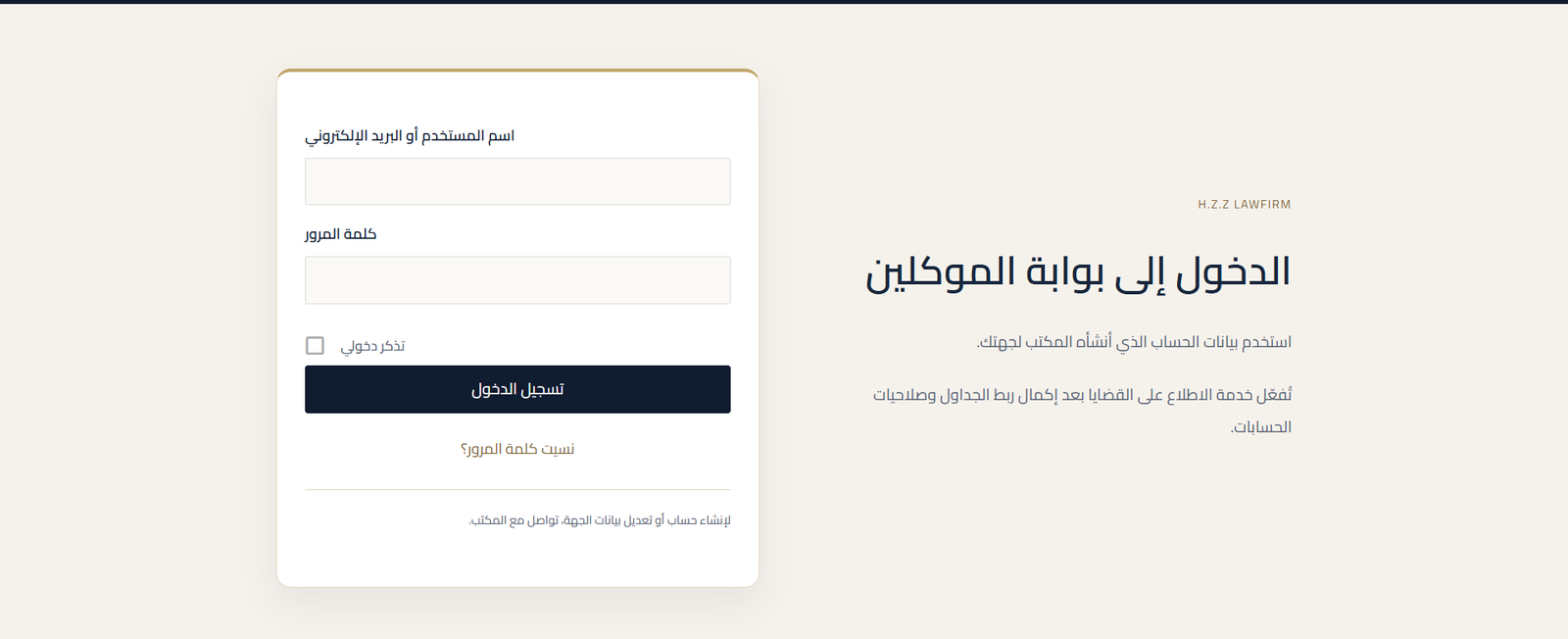
03
Read the case table
The table shows cases linked to your organisation. The reference combines the year and number, for example 2026/5400. Use search and filters to find a matter.
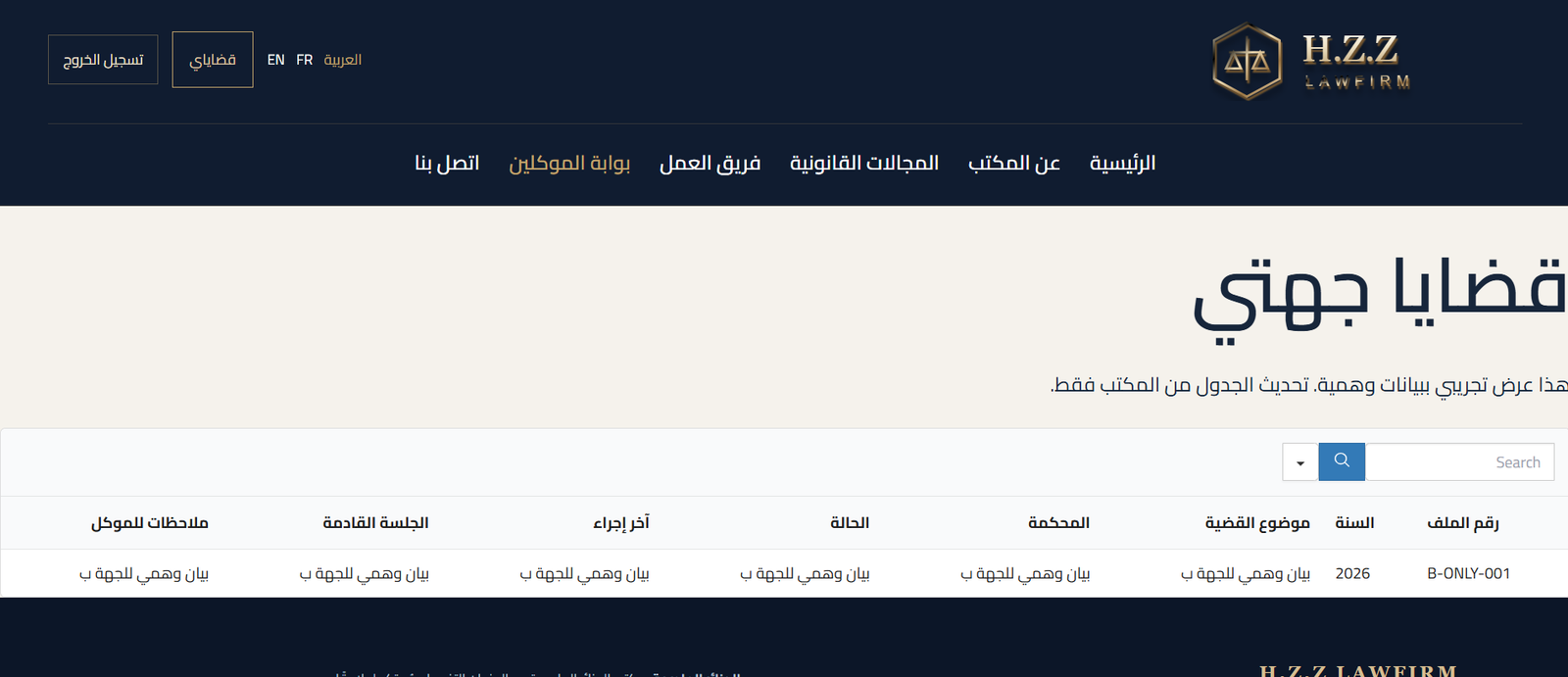
04
Open details and documents
Select + beside a case reference to view requests, adjournments, the ruling and attachments. If the firm has uploaded a petition, a link lets you download its PDF. An empty field means the firm has not yet entered that item.
05
Follow updates
The adjournment log lists dates and reasons entered by the firm. Clients cannot edit the table. To request clarification or a correction, contact the firm and quote the case reference.
06
Recover access and sign out
If you forget your password, use the reset link and follow the email instructions. Contact the firm if it does not arrive. When finished, select “Sign out”, especially on a shared device. You will return to the sign-in page.